Shabby Miss Jenn

Wednesday, October 26, 2011

I can't believe it's almost November...really?

Wow, I am looking at my calendar and find it hard to believe that November is just around the corner. Where has this year gone? It feels like it's flown by so fast. How does that happen?? I've been busy working on my creative side, along with the usual chauffeuring of kids between activities. The girls are involved once again this fall with their favorite sports - soccer and volleyball. Two of them finish up their season this week and my third will have her last volleyball games next weekend - just in time for the holiday madness!

Have you guys discovered Pinterest yet??? Oh my goodness! What a fun place to get lost in! I discovered it not long ago when I was looking for some home organizing ideas...that lead to photo shoot ideas for teens and babies...then on to Christmas gift ideas...then on to creative spaces...the list grows each time I get on the website! Here's a link for you to follow me if you like: Kim's Pinterest Site.

And, in the last few months, I have finally gained the confidence to add my photography to a portfolio on Zenfolio. Here's a link to my gallery over there - Kim's Zenfolio Gallery. I'm slowly adding to my portfolio and will put more pictures there as I take them.

Ok and now for more fun...these are some things I've done lately. I volunteered to help with the high school volleyball team. They have a night for each team during the season to recognize the girls. I created these posters for each girl and we hung them outside the main gym on their night. They were such fun to create and the girls had a keepsake to take home and hang in their rooms.


I was also playing with some new techniques in Photoshop...how cool is this technique?? It's simply blending two photos...


I used this photo - taken on my trip to Savannah, GA this past July - and this vintage-y looking paper I created in photoshop. Fun, huh?


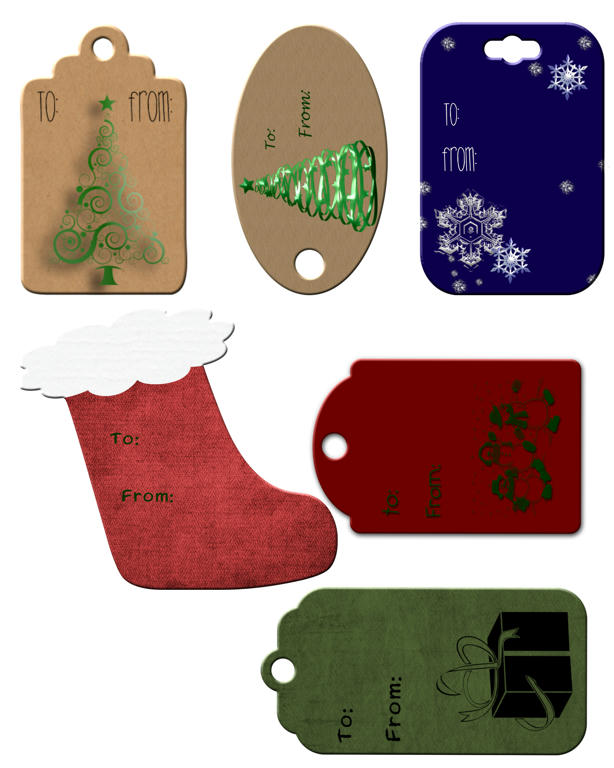
I'm hoping to get started on more fun things for the holidays. I enjoyed making the printable tags last year and hopefully, I can make more this season!

Wednesday, December 1, 2010

Gift Tags Printable just for you!

I'm back from Thanksgiving break and ready to move along in my digital holiday gift creating. I had mentioned on Facebook that I planned to do some printable gift tags for you all. I finally got them done. I didn't have a printer at the lake house, so I had to wait until I got home to make sure they looked ok printed. I have uploaded them to Mediafire as a straight JPG file. This means anyone can open them and print them out. You don't have to have Photoshop! YAY! I would recommend printing them on a good, heavy cardstock. When you click the image, it will show you the full JPG file. You can just select print from your web browser to print.


I also updated the Merry Christmas Card. This is a 5x7 PSD (Photoshop) file. You do need photoshop for this one and you should have a little bit of photoshop knowledge. It involves using a clipping mask. It's easy to do and I have the instructions included below. At the request of a former MCC student, I have added a gold 2010 to the Merry Christmas card. Thanks for the idea Gwen! When you click on the images below (both the Merry Christmas Card and the Snowy Card), you will be taken to the download site. There will be a message "Processing Download" and when that it done, look for a yellowy/gold box that says "Click here to download" or something along those lines. That will be your link. The only problem with these download sites is they have A LOT of advertising and it can be confusing at times.


I also added this new little creation...a snowy card! This snowy card is the same dealio as the other...you need to have photoshop and a little photoshop knowledge because there is a clipping mask involved (see instructions below). I've tried these on both PSE and CS3 and they work in both.


Now if you are unsure of how to create a clipping mask, here is what I do. The photo will be in the grayed out area once you have done this.

First, open the photo you want to use (if you need to do a landscape, you can easily use your move tool and turn this gold frame around to fit your needs). Once you have the photo open and cropped to your liking, do the following:

1. Move the photo over onto your card layout using the drag/drop. Place your photo layer just above the layer marked Clipping Mask Layer (you'll see the gray icon on the layers palette).

2. When you have your photo layer over the Clipping Mask layer, hover the cursor in the middle of the two layers while holding down your ALT key. You'll see two intersecting circles with an arrow, still holding down your ALT key, left mouse click now. You should see a little bent arrow by your photo and the photo should fit perfectly within your gold frame.

I'm not sure what I'll create this week - if anything. I'm booked solid with all kinds of stuff and I'm not sure I'll get to be as creative as I would like.

Enjoy the downloads and if you have suggestions for future, let me know! I'm always open for suggestions!!

Tuesday, November 23, 2010

A little something I created today...

So I've been slowly learning how to do digital kits for a few months now. Sometimes it's so easy and other times I struggle trying to get just the right look or trying to figure out the steps for an embellishment and find my darn brushes don't work in my CS3! I go back and revisit my notes and old digital magazines...I study others' designs and re-read my CS3 books but things don't always fall into place. I can't believe how long it can take me to absorb things sometimes.

Anyway, since Christmas is so close and many of you are starting to think about Christmas cards, I decided to try my hand at a card design. This is actually all of my own creating...I did the red and green papers myself (cool, huh??). The gold frame and swirlies are brushes with gold metallic styles applied to them.

To use this, you'll need to have a photo handy, crop it and then use a clipping mask for it to fit perfectly into the gold frame. Don't know how to use a clipping mask...piece of cake! I have instructions below.

I have a link to download the .PSD file (photoshop) - just click
HERE
I did test this in Elements 8.0 and of course, CS3. More than likely it works in other photoshop programs, but I can't promise.


Now if you are unsure of how to create a clipping mask, here is what I do. The photo will be in the grayed out area once you have done this.

First, open the photo you want to use (if you need to do a landscape, you can easily use your move tool and turn this gold frame around to fit your needs). Once you have the photo open and cropped to your liking, do the following:

1. Move the photo over onto your card layout using the drag/drop. Place your photo layer just above the layer marked Clipping Mask Layer (you'll see the gray icon on the layers palette).

2. When you have your photo layer over the Clipping Mask layer, hover the cursor in the middle of the two layers and hold down your ALT key. You'll see two intersecting circles with an arrow, holding down your ALT key, click now. You should see a little bent arrow by your photo and the photo should fit perfectly within your gold frame.

Here is my take on it:


Now, go have fun and be sure to show me what you have done!!

Have a very Happy Thanksgiving!!!

Friday, November 19, 2010

{Friday Photo Bliss}

In my determination to keep this blog up to date, I'm getting back to posting the {Friday Photo Bliss} photos again. These were inspired by Rita at CoffeeShop, who got her inspiration from SouleMama.

This week was American Education Week and I visited my daughter's class. As always I had my camera attached to me...never leave home without it! I saw my friend visiting her son and couldn't resist snapping this photo. This is the sweetest little face ever! I just think she is beyond adorable. Sleeping children just beg to be photographed...so innocent, so angelic. Enjoy!!!


PS - I used CoffeeShop Faded Daydreams action along with Pioneer Woman's Quick Edge Burn action on this photo.

Wednesday, November 17, 2010

So, you wanna know what I've been up to??

I think life has finally settled down a bit and I'm focusing on my fun stuff! Yay for me! I've been spending my evenings on a soccer field or volleyball court, my Saturdays running between schools for soccer or volleyball games...it's been completely chaotic. But, now, it's over and I am spending time at home, not in my car. I love that my kids are involved in activities and aren't couch potatoes, but I also love when it all comes to an end and I can really appreciate the relaxation that we sometimes take for granted - you know, the I'm bored thing...

So, I have kept up with some of my photography and photoshopping. I took photos for the girls' teams and created different pieces. I discovered how much I love the photographer's templates! Using clipping masks and some photos, I can put together templates in a jiffy. I found these templates on Rita's site - CoffeeTeaPhotography - she's awesome! Most of these templates are completely customizable.

Here are the most recent collages that I have done. I gave them to Kasey's volleyball coaches and Mikaela's soccer coach, framed. Nice little gifts that mean a lot to them. By the way, these are 4 different collages I did - 3 are 12x12 in size, the other is 8x10.


I've gotten so many compliments on these, I'm thinking I should go into business creating these for people. I can't decide...so help me...let me know what you think!! These don't have to be just for sports, they could be photos of anything. They could be any size or shape...endless possibilities!

On another note, I'm going to be teaching Using Photoshop 101 and Using Photoshop 102 again at My Creative Classroom. If you still haven't checked out the offerings, you need to go over and check it out! There are so many creative ladies that are instructors at MCC and they have so much to offer...Altered Items, Scrapbooking, Stamping, Cricut Specific classes, the list is endless. You can follow the link here or over in the sidebar. Sign up for the newsletter - it's free - that will keep you up to date on everything thats happening in the classroom!

I'm also planning a re-vamp on this blog...been planning it for a while, but haven't actually completed the process. I have so many ideas, it's hard to keep them all in one cohesive plan. I'm sure some of you know how that is!!

Monday, September 13, 2010

Photoshop classes are coming this week!!

This week will be the launch of my fall semester of classes at My Creative Classroom! Yay! I have several classes coming up between now and mid-October. There's a little something for everyone. It's not too late to register!

First, beginning tomorrow, I have the basic Using Photoshop 101 starting. In this class we'll learn the basics of Photoshop - commands, tool bars - and will put what we learn about those to use by creating a couple of layouts. All you need is photos and a copy of Photoshop Elements. You can even download a free 30 day trial of Elements to try it before you buy it! Here is one layout we'll do:


If you are looking for something more than the basics, try the Using Photoshop 102 class! In this class, we'll learn some fun techniques to use in our layouts - torn edges, rounding corners, text from photos, and changing photo colors - we'll then do layouts using these great techniques! Here's an example of a layout we'll do from the class:


Still want to learn about Photoshop but you need it more for photo editing and not the scrapbooking? How about trying my Photo Editing class? This class begins September 21st and runs for 4 weeks. During your time in this class, we'll cover several techniques to edit your photos. These techniques include some fun stuff to enhance your photos, as well as some color adjusting techniques to turn those old faded photos into bright, colorful pictures!!


I hope to see you in the classroom!! Have a great week everyone!

Tuesday, September 7, 2010

First Day of School

So, today was our first day back to school. I had two girls starting a new middle school and one still at the elementary school. They were all so excited to get back. I didn't even have to wake them this morning. All three made their way downstairs, bright eyed and bushy tailed! I enjoy mornings like this morning when there is no hassle and no grumpies. After getting everyone on the bus, I played (like all of my friends!) on facebook for a while. I just couldn't get motivated to do something productive. I guess after spending all summer with kids I deserved one day to just goof off, right? I couldn't really concentrate on any one task because I worried all day about my 6th grader. Sure I had two at a new middle school, but the 8th grader was a pro and had been to middle school before. I was totally thrilled to hear that they all had a good day.

You know I have to throw in a few first day photos, right?? I used a photoshop action on these to make them a little more fun. This action was downloaded from Scrap Orchard and created by Faith True. These are both done with her Candy Apple collection, Sweet Candy Apple action.


I like how these actions have a little burnt edging to them.

Just so I don't totally bore you with the back to school stuff, I did take other photos this weekend. These are of my girls, but girls of a different kind. On our mini-farm, we have two goats. I love them. They are so funny. They remind me of a toddler...very curious and always in the middle of everything. I have never really tried to take pictures of them in the past and can I just say, it isn't easy! I took a ton of pictures and only a very few actually turned out. I don't think they liked the sound of the camera. They wouldn't come near the fence. I ended up getting my zoom lens and capturing some shots that way. These photos I also ran actions on. I'm hooked...a total action junkie...I'll admit it! These actions are from Pioneer Woman, her Old West set from the Action Set 1. Notice how different they look...one photo was taken in full sun, the other was under a tree in our yard. Sooo, without further babbling from me, meet Nemo and Rose Petal (my girls were 2 and 4 when we got them...they named them after an episode of Arthur, their favorite show at the time!), two of my four legged fur babies.


This would be my girl Rose Petal. She was standing under the tree in my yard when I took this. She didn't care for the clicking of the camera at all. I could see the hairs on her neck and back stand up each time I snapped. She would get a crazed look and jump. It was funny to watch. Poor girl, I guess I shouldn't laugh.


This lovely little face belongs to Nemo. She and Rose Petal are sisters and look exactly alike. The only way I can tell them apart is Nemo's clipped ear. We got them when they were 2 months old from a local farm. Her ear somehow got clipped. I think they had seventy goats and couldn't take care of them all, so we took two. I would have loved to get more, but we weren't sure how well they would work out. We all just love these girls!